Same questions. Same careful answers.
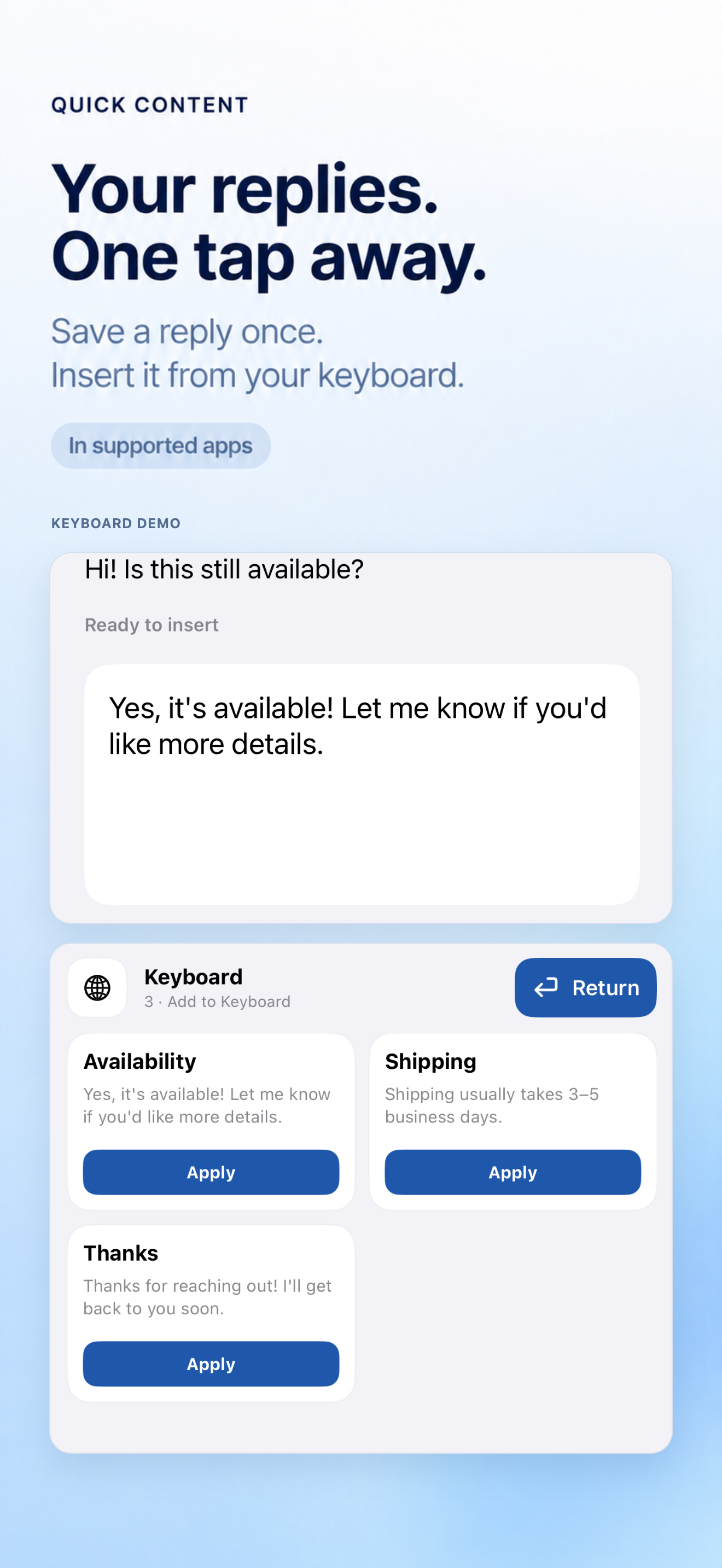
Availability, booking instructions, service details. Organize a clear answer in the main app, then tap it in the keyboard and review before sending.
“Yes, it’s available. Let me know if you’d like more details.”
SAVED REPLIES & TEMPLATES FOR iPHONE
Another customer asks the same question. Another form needs your email. Save the words you keep repeating, then insert them right from your keyboard.
App Store availability and price vary by region.
For text fields that support third-party keyboards. Password fields and some apps are excluded.

LESS REPETITION. MORE ROOM TO THINK.
Give your go-to text a place in your keyboard, instead of rewriting it or hunting through old messages.
Availability, booking instructions, service details. Organize a clear answer in the main app, then tap it in the keyboard and review before sending.
“Yes, it’s available. Let me know if you’d like more details.”
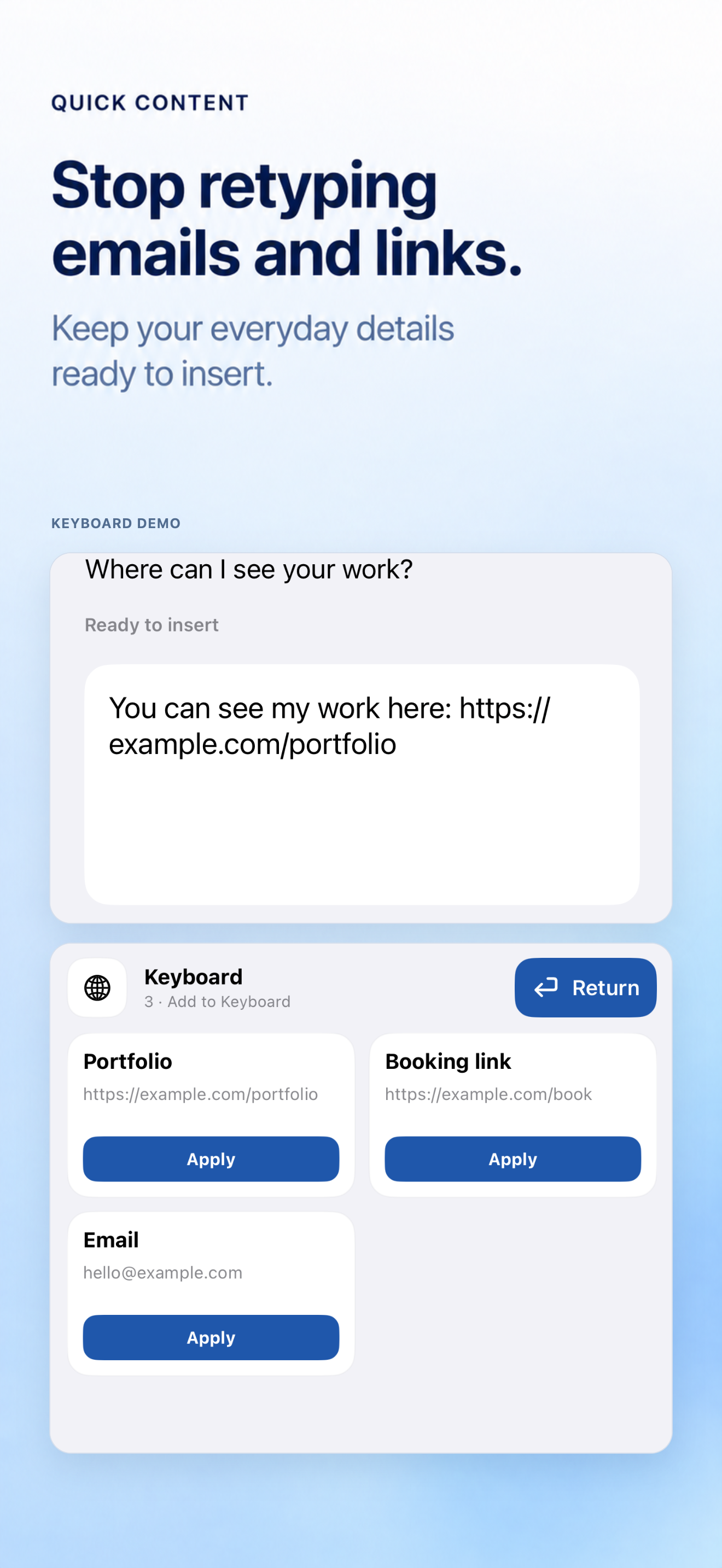
Your email, address, portfolio link and sign-off do not need a fresh search every time. Keep each as a named snippet.
Alex · hello@example.com · https://example.com/portfolio
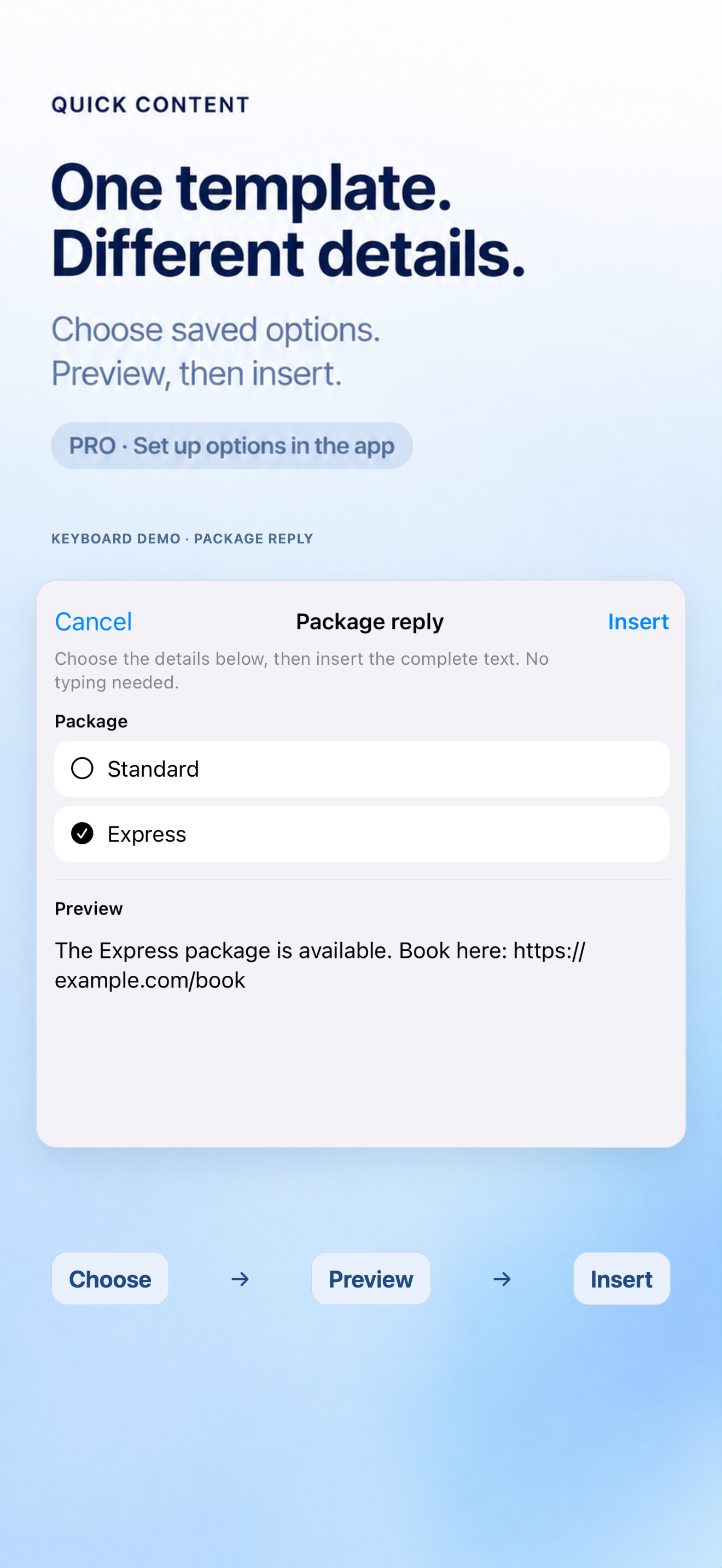
Changing a package or date? With Pro, configure fixed details and choices in the app, then select, preview and insert from the keyboard.
“The Standard package is available. Book here: https://example.com/book”
YOUR WORDS. YOUR FINAL SAY.
Fixed replies insert directly. Pro templates let you choose the details and preview the complete text first.
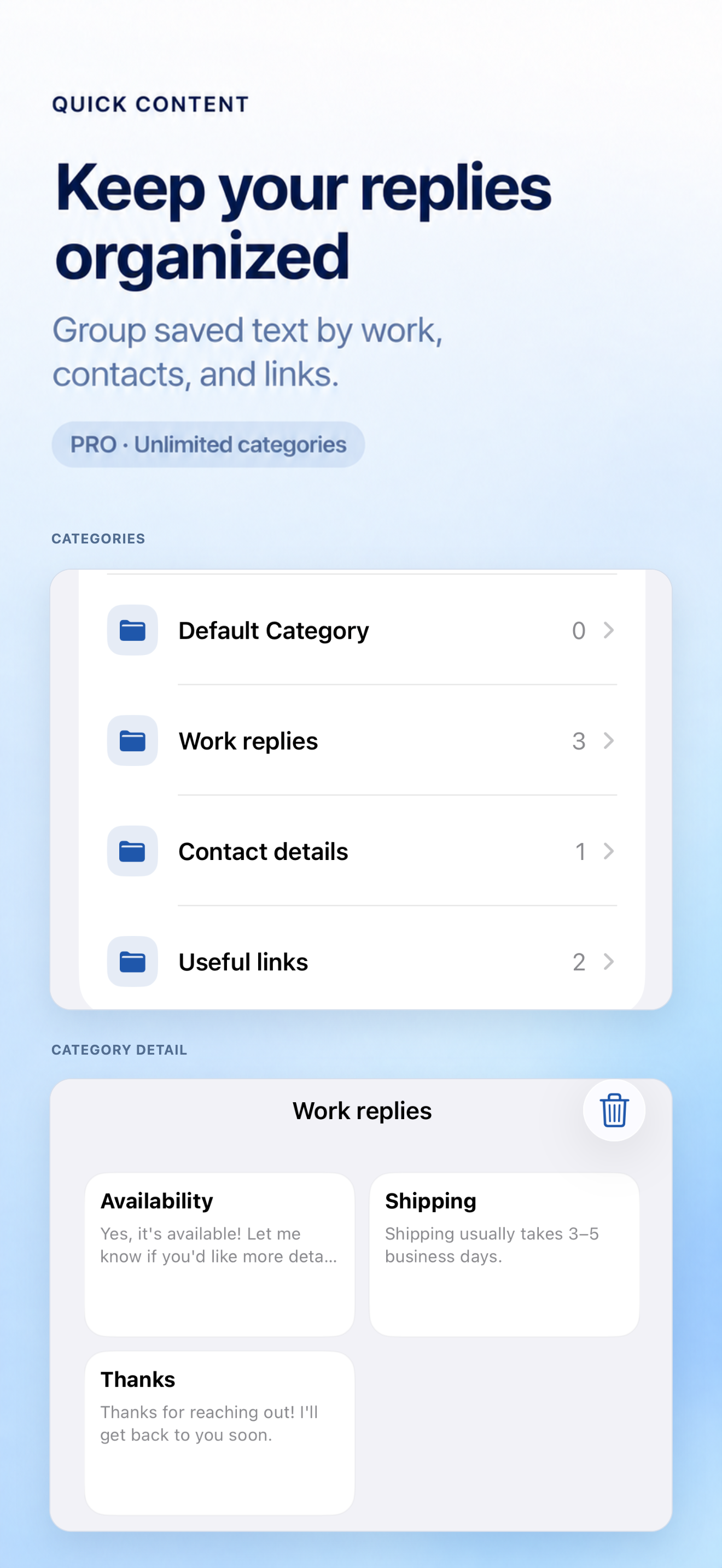
Add, search or pin replies, contact details and links in the main app.
In a supported text field, switch to Quick Content and tap a saved entry.
Preview a template before inserting. Check fixed text after insertion too, then decide when to send.
A CLOSER LOOK
Storefront previews fetched from App Store Connect. Shown in full, at their original proportions.


ONE LESS PERMISSION TO WORRY ABOUT
No signup. No Full Access permission. No ads, analytics SDK or cloud AI. Your saved content stays on this device.
The keyboard extension does not request Full Access, so iOS prevents it from using the network. Optional device authentication controls interface access; it does not encrypt stored data.
Read our privacy policy ↗Require device authentication before viewing or using selected snippets. This controls access in the interface; it does not encrypt the stored data.
Import or export JSON files with snippets and template details. Keep exported files safe; the app does not provide automatic cloud sync.
START WITH YOUR MOST-USED REPLY
Try the saved-text workflow with the free version. Pro is an optional one-time purchase, with no subscription.
Up to 3 snippets · 1 category
The App Store and in-app purchase screen show the price for your region.
CHOOSE THE RIGHT LEVEL OF TOOL
A few shortcuts may only need Apple’s built-in tool. Quick Content favors a local tap-and-review workflow. Sync, attachments or richer keyboard features point to other products.
FAQ
It works in text fields that allow third-party keyboards. Password fields and some apps use the system keyboard or disable custom keyboards. Send behavior also depends on the host app.
No. Saved snippets stay on your device, and the keyboard does not request Full Access.
The workflow is to reuse text you saved. You select it, check the inserted message and decide when to send. It does not provide an automatic-reply or bulk-messaging workflow.
With Pro, configure fixed values and options under Settings → Template Details in the main app, then insert the matching fields in your snippet. The keyboard selects configured details and previews the result. Missing fields must be configured in the main app.
Free supports 3 snippets and 1 category. One-time Pro unlocks unlimited snippets and categories, template variables, device authentication and JSON import/export. There is no subscription.
There is no automatic cloud sync. Pro supports manual JSON export/import including snippets and template details. You are responsible for keeping exported files.
Text Replacement fits a few shortcuts you remember and type. Quick Content lets you organize, search and pin in the main app, then tap saved entries in the keyboard. Pro adds configured template choices. See the comparison guide below.
The app and keyboard support English, Simplified and Traditional Chinese, Japanese, Korean, French, German, Spanish and Brazilian Portuguese. Your saved text is not automatically translated.
START WITH YOUR WORKFLOW
Support, booking and freelance enquiries each need a different next step. Choose a workflow for editable examples and honest limits.
Prepare clear answers to repeat customer questions, then insert and review them from a local iPhone keyboard.
See editable examples FOR YOUR WORK / 02Keep appointment questions, quote prerequisites and follow-ups ready as editable text on your iPhone.
See editable examples FOR YOUR WORK / 03Respond to new project enquiries with reusable questions about scope, timeline and budget—without auto-sending.
See editable examplesPRACTICAL ANSWERS
A practical workflow for repeat customer questions and sales enquiries.
Read the guide FIELD GUIDE / 02Keep contact details, signatures and hashtag sets ready to insert.
Read the guide FIELD GUIDE / 03Choose a workflow that fits how you actually write on your iPhone.
Read the guideNEXT TIME, SKIP THE REWRITE
Review the setup steps, or download the app from the App Store.
App Store availability and price vary by region.